Getting started
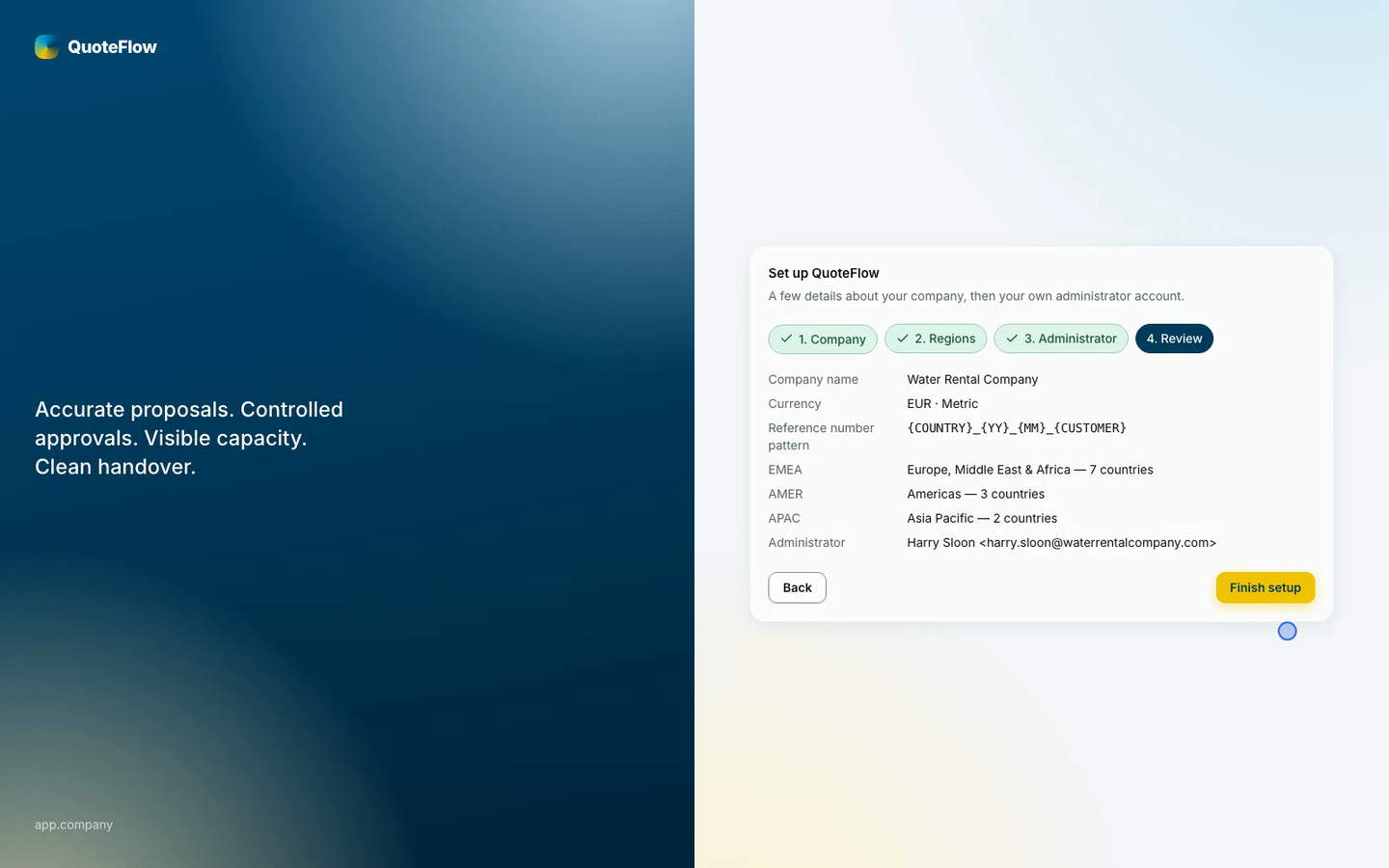
A new QuoteFlow instance opens on the setup wizard. It runs once, for the first super admin, and takes a few minutes. After it, the company is ready for the others to be invited.
1. The company
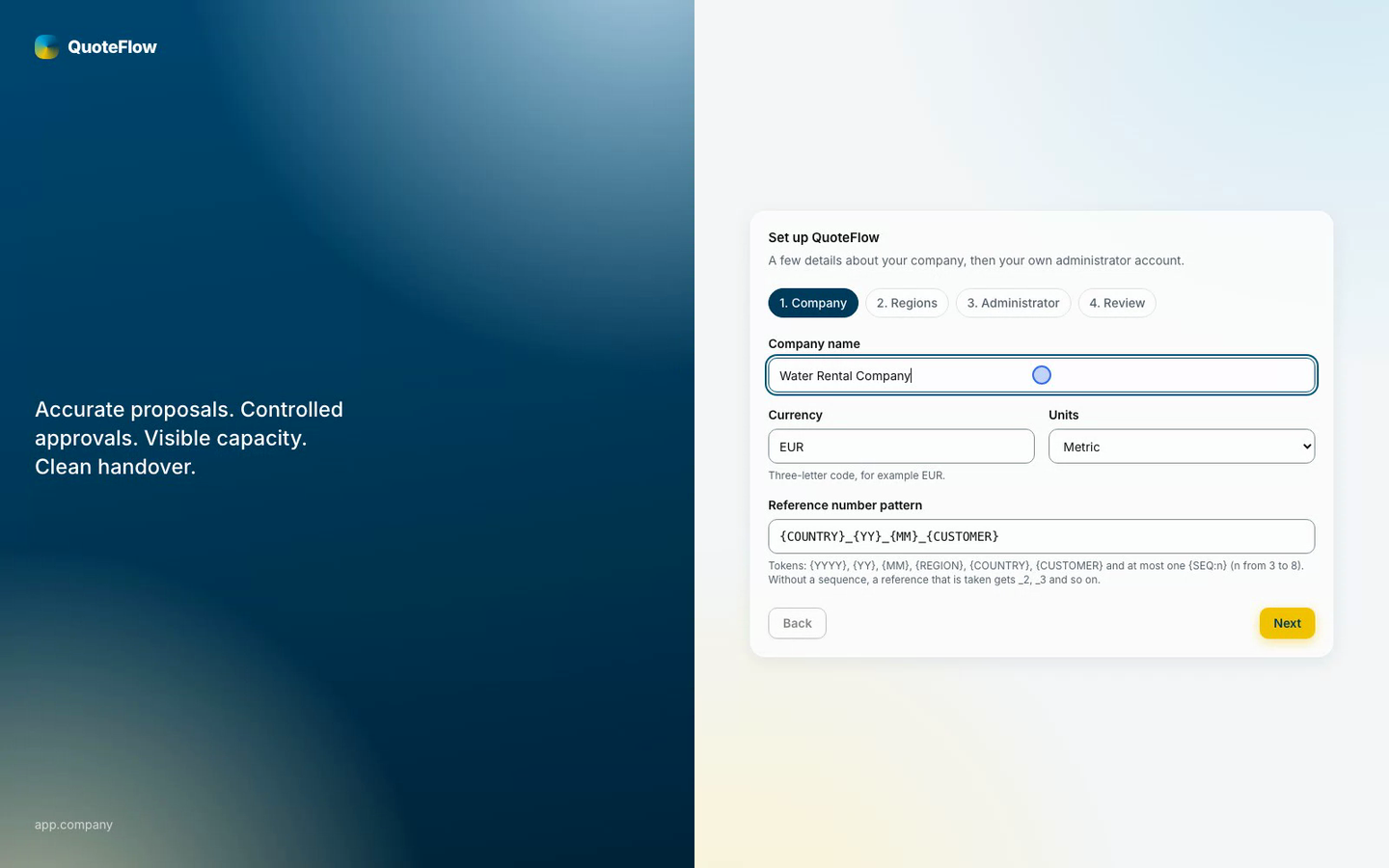
-
Company name, as the app and the documents show it.
-
Currency, a three-letter code such as EUR. It is locked once the first proposal exists.
-
Units, metric or imperial, for the water data.
-
The pattern of proposal references; the default is the country code, the year, the month and the customer.
2. Regions and countries
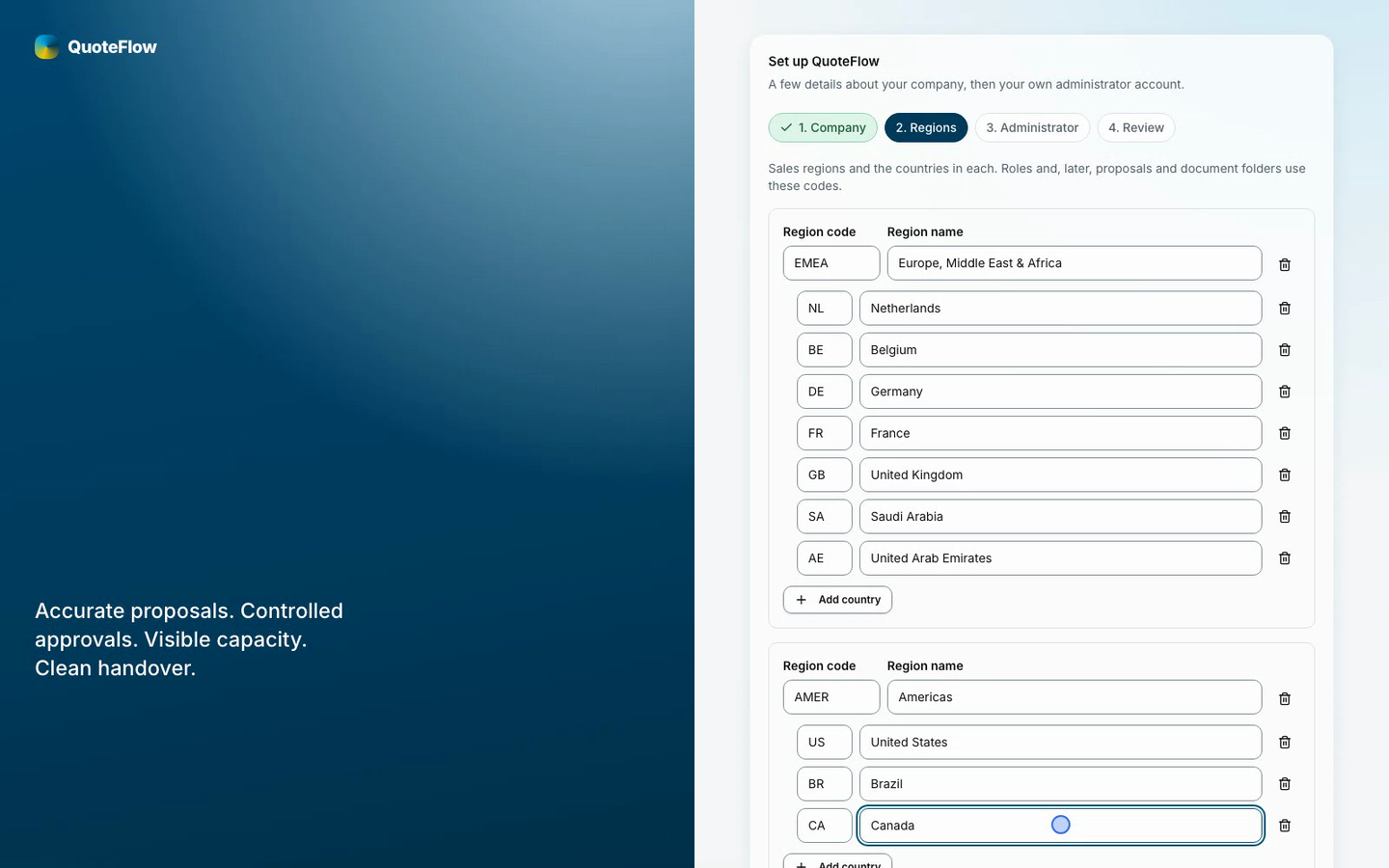
Sales regions and their countries. Every role is held for the whole company, one region or one country, and the reports filter by them, so set them up as the company sells. Add country adds a row to a region: the country code (ISO, two letters) and its name. Regions and countries can be changed later under Settings → Regions & countries.
3. Your account
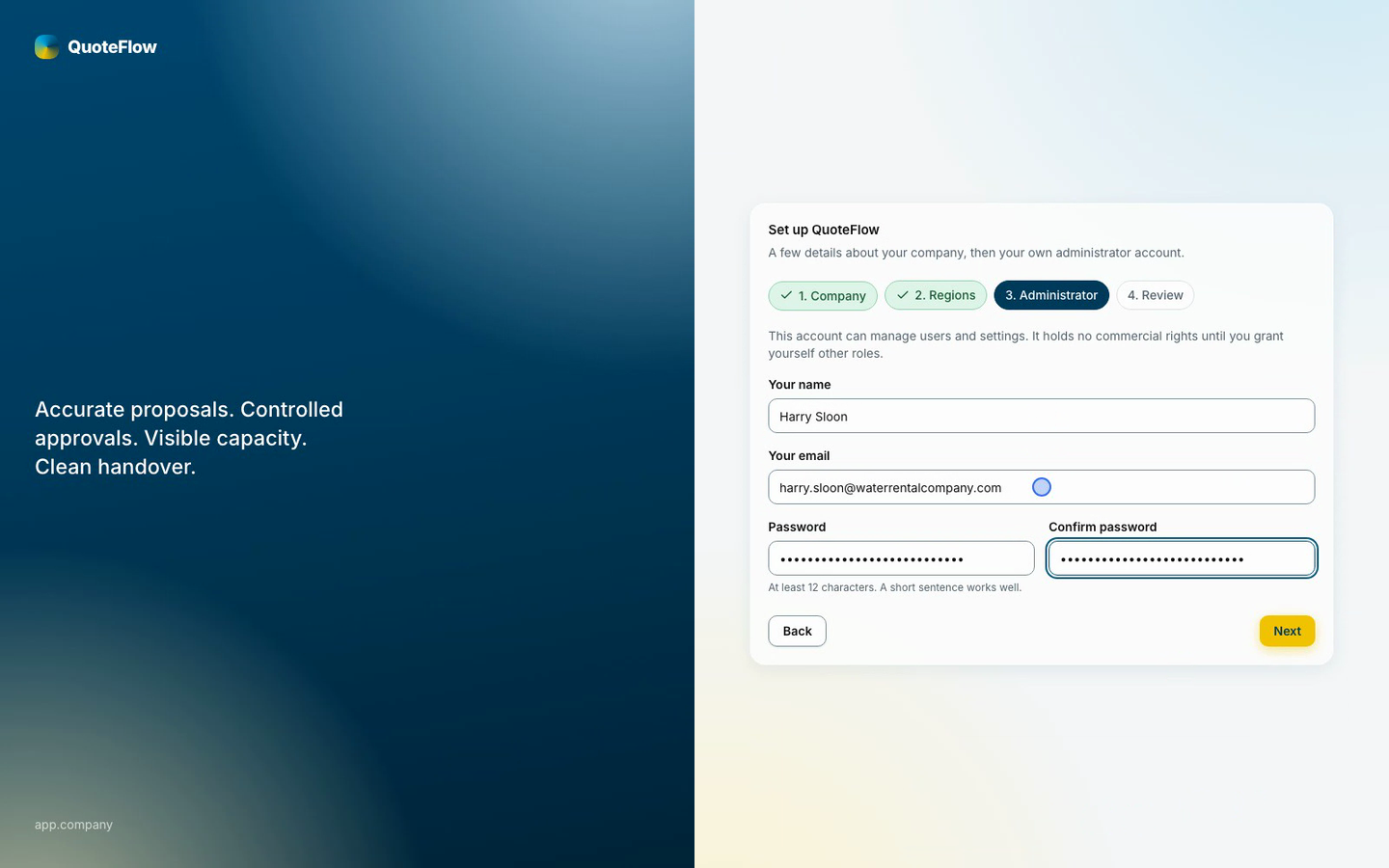
Your name, your email and a password. This first account is the super admin: it manages users, settings and the audit log. Give yourself other roles afterwards, under Users, if you also sell, price or keep the catalogue.
What to set up next
In this order, each by the role that owns it:
-
Settings (super admin): the legal name and address, proposal validity and the warning windows, the folder structure. See the super admin’s guide.
-
Users (super admin): invite the team with their roles. See Inviting the team.
-
Catalogue and water parameters (content admin): equipment, services, consumables, datasheets, and the water values a salesperson records. See the content admin’s guide.
-
Prices and pricing rules (commercial admin): list prices and how much discount each role may give. See the commercial admin’s guide.
-
Templates (content admin): the look of the proposal.
Then the salespeople start; see the salesperson’s guide.
Inviting the team
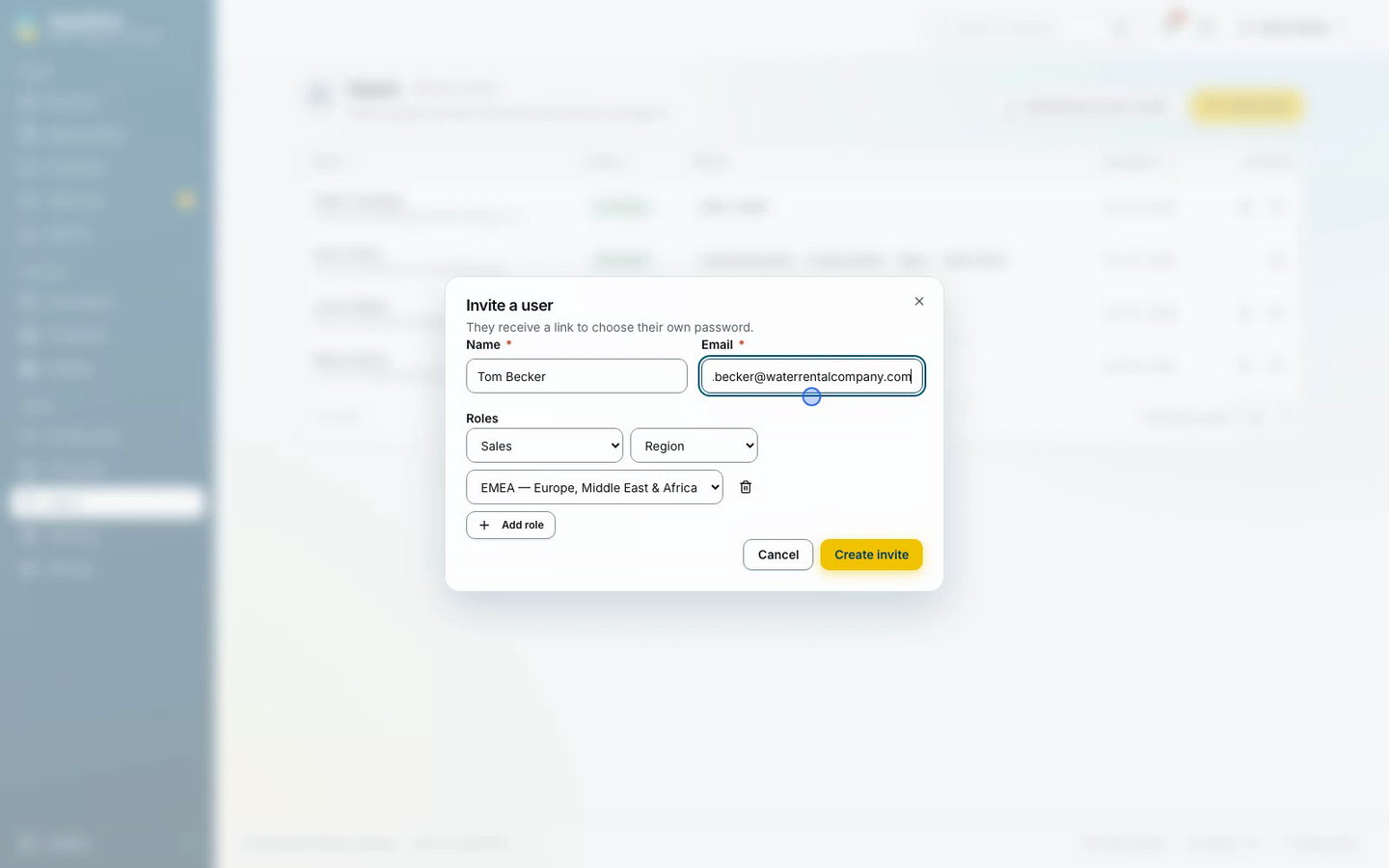
Under Users, Invite user: the name, the email and one or more roles, each with its scope (the whole company, a region or a country). Create invite sends the invitation by email and shows the link, which can also be copied and sent another way.
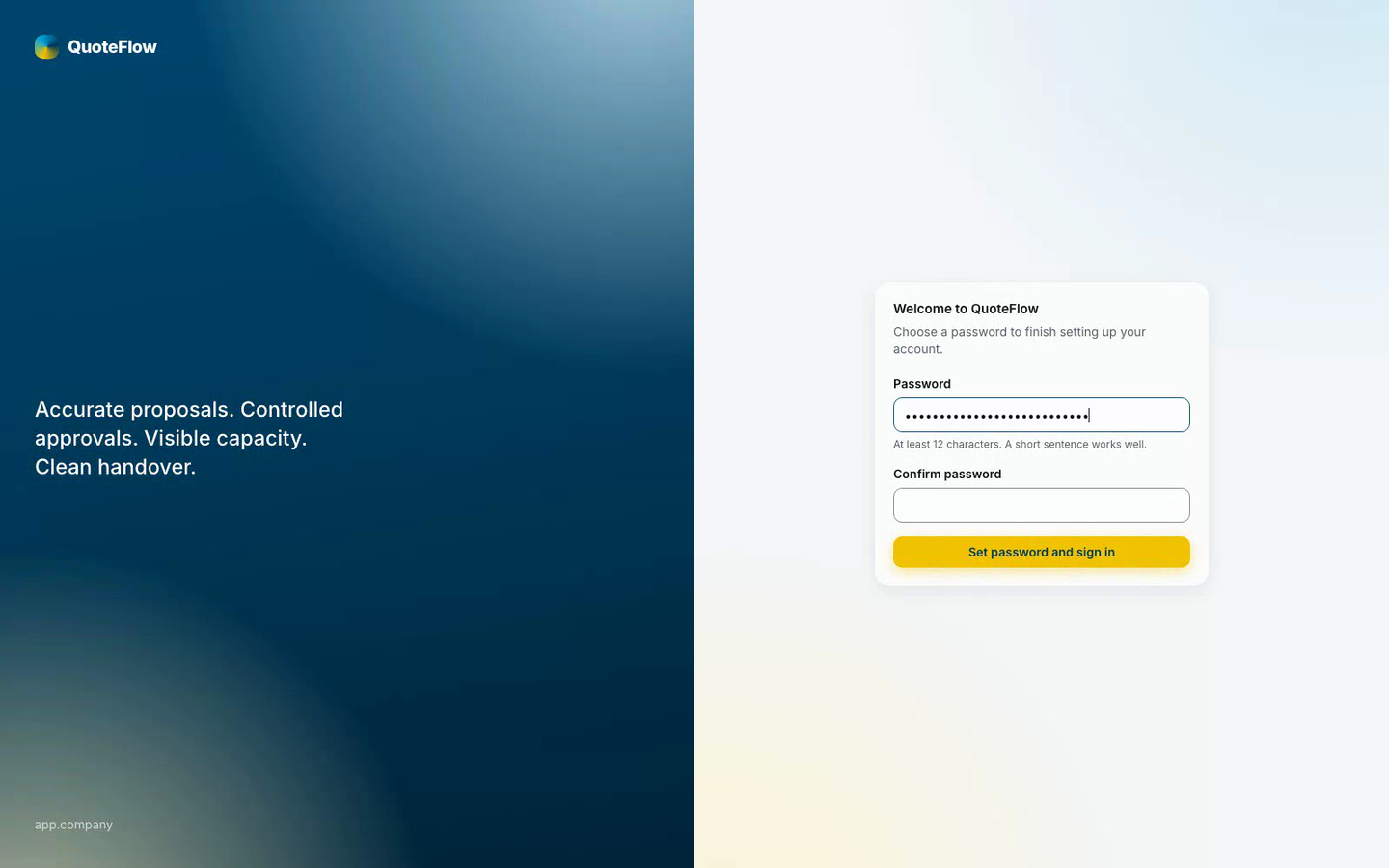
The new user opens the link, chooses a password and is signed in. New invite link on the user’s row replaces a lost or expired link.
Who does what
| Role | Does |
|---|---|
Sales |
Customers, opportunities and their water data; builds, sends for approval and issues proposals. Guide |
Commercial admin |
List prices, pricing rules, approval decisions, reassigning opportunities. Guide |
Content admin |
Catalogue, datasheets, water parameters and templates. Guide |
Operations manager |
Reads customers, opportunities and reports. Guide |
Super admin |
Setup, users and roles, settings, the audit log and the system. Guide |
One person can hold several roles; a small company often gives the owner all of them.