Building a proposal
From the opportunity, Start proposal opens the builder: eight steps across the top, each marked when it still blocks the proposal, and a readiness gauge on the right. Work in any order; the proposal cannot be marked ready while a step is blocked.
The live preview
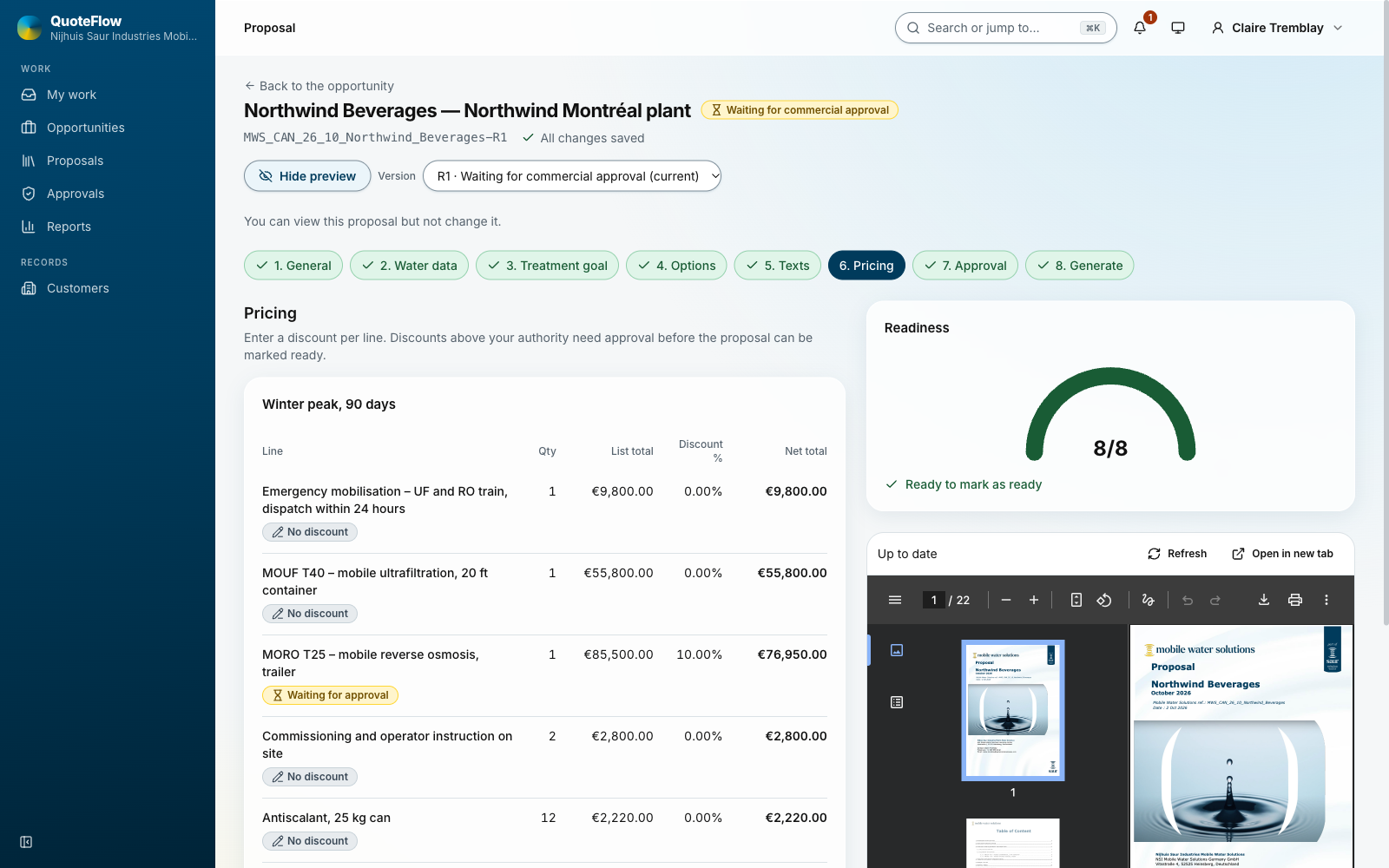
Show preview in the header keeps the document beside the steps, as the customer will get it. It renders again a moment after each saved change ("Changed, rendering shortly…", then "Up to date"); Refresh renders now, Open in new tab gives the current PDF. The browser remembers whether the pane is open. An issued version has no preview: its documents are on the Generate step.
1. General, 2. Water data, 3. Treatment goal
The opportunity’s data and the water data as they will print, with the readiness checks on them. Edit them on the opportunity’s page.
4. Options
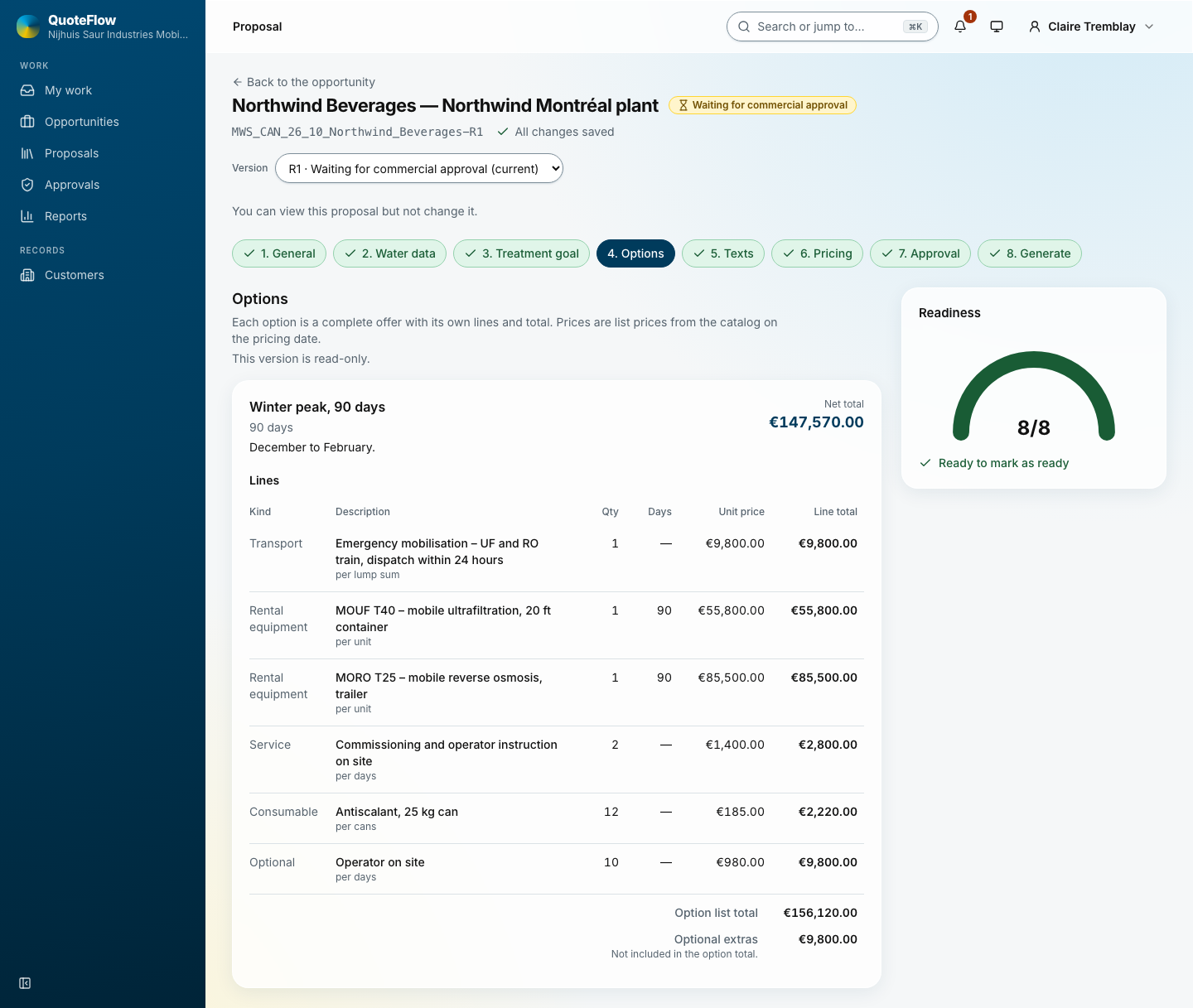
One or more options the customer chooses between ("Rental of 1 × IPF10", "Emergency supply for 21 days"), each with a rental duration and comments. Lines inside an option:
-
Rental equipment from the catalogue: price per day × the duration.
-
Service and consumable items, transport, external supplier items, post-rental work.
-
Optional lines, printed as extras outside the option’s total.
Add line picks the kind, then the catalogue item and the quantity:
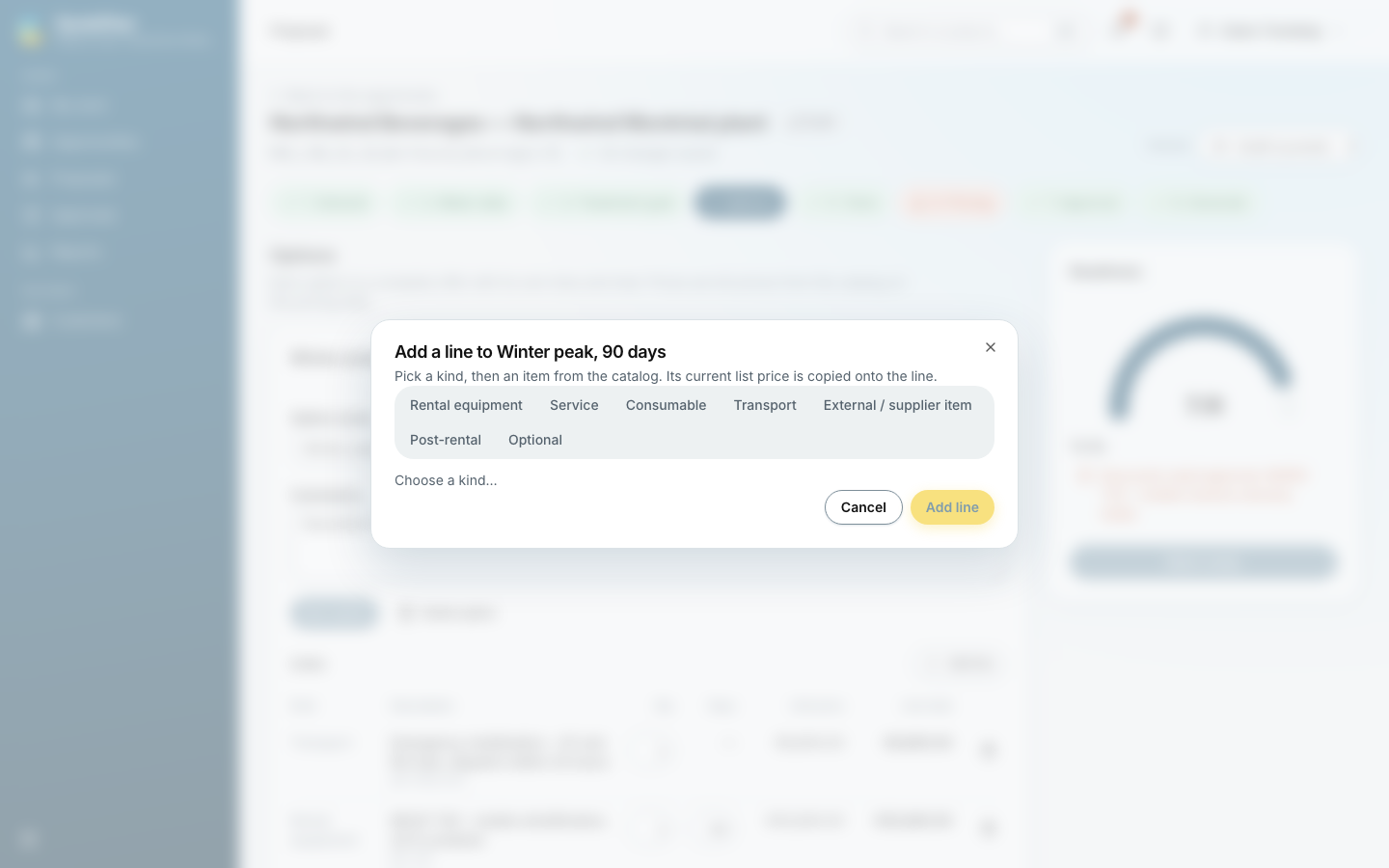
A line from the catalogue takes its description, unit and price from there; a custom line is written by hand and always needs commercial approval.
5. Texts
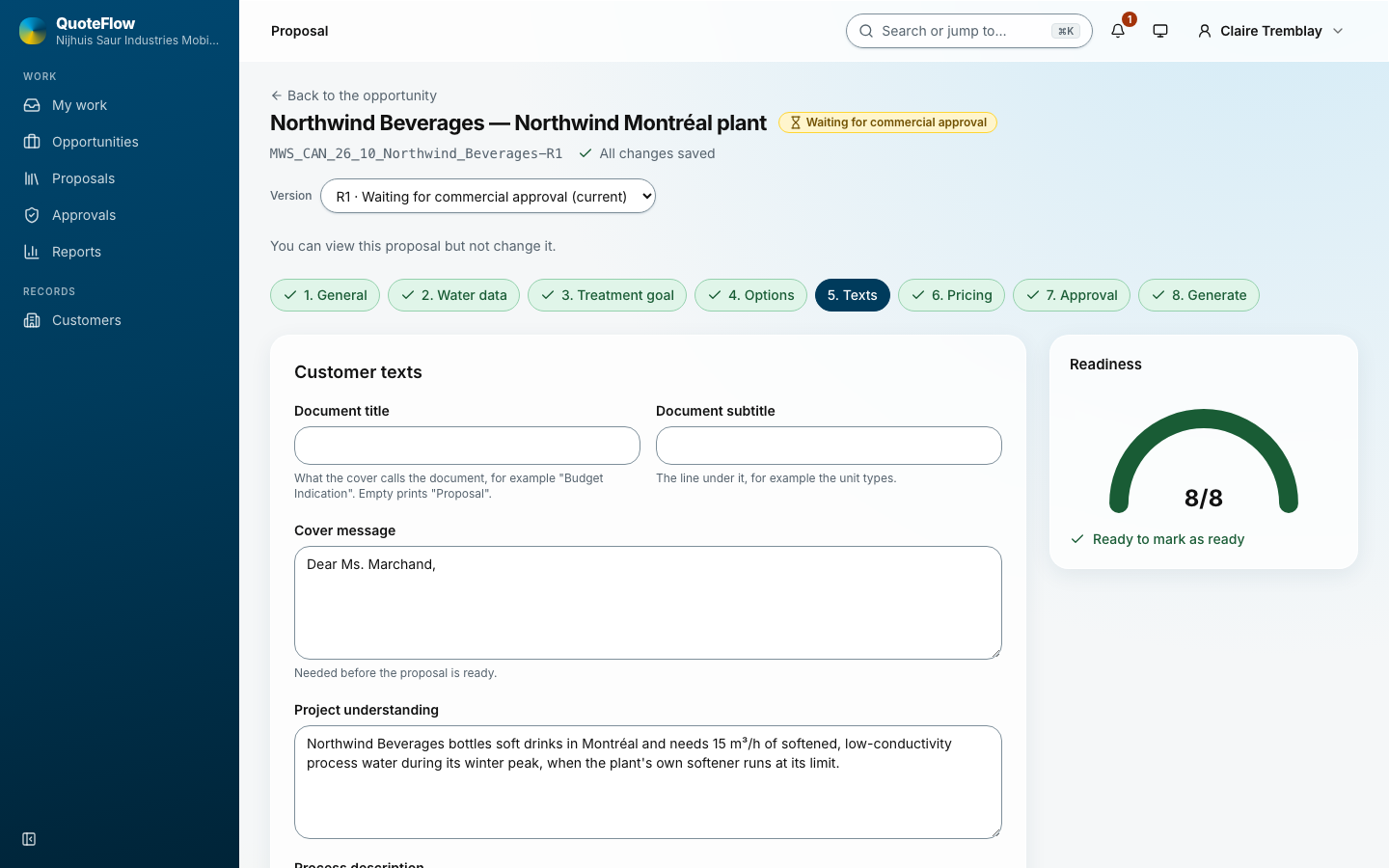
The cover message, the project understanding, the process description, assumptions and exclusions. The template decides which are required; the others print when filled.
6. Pricing
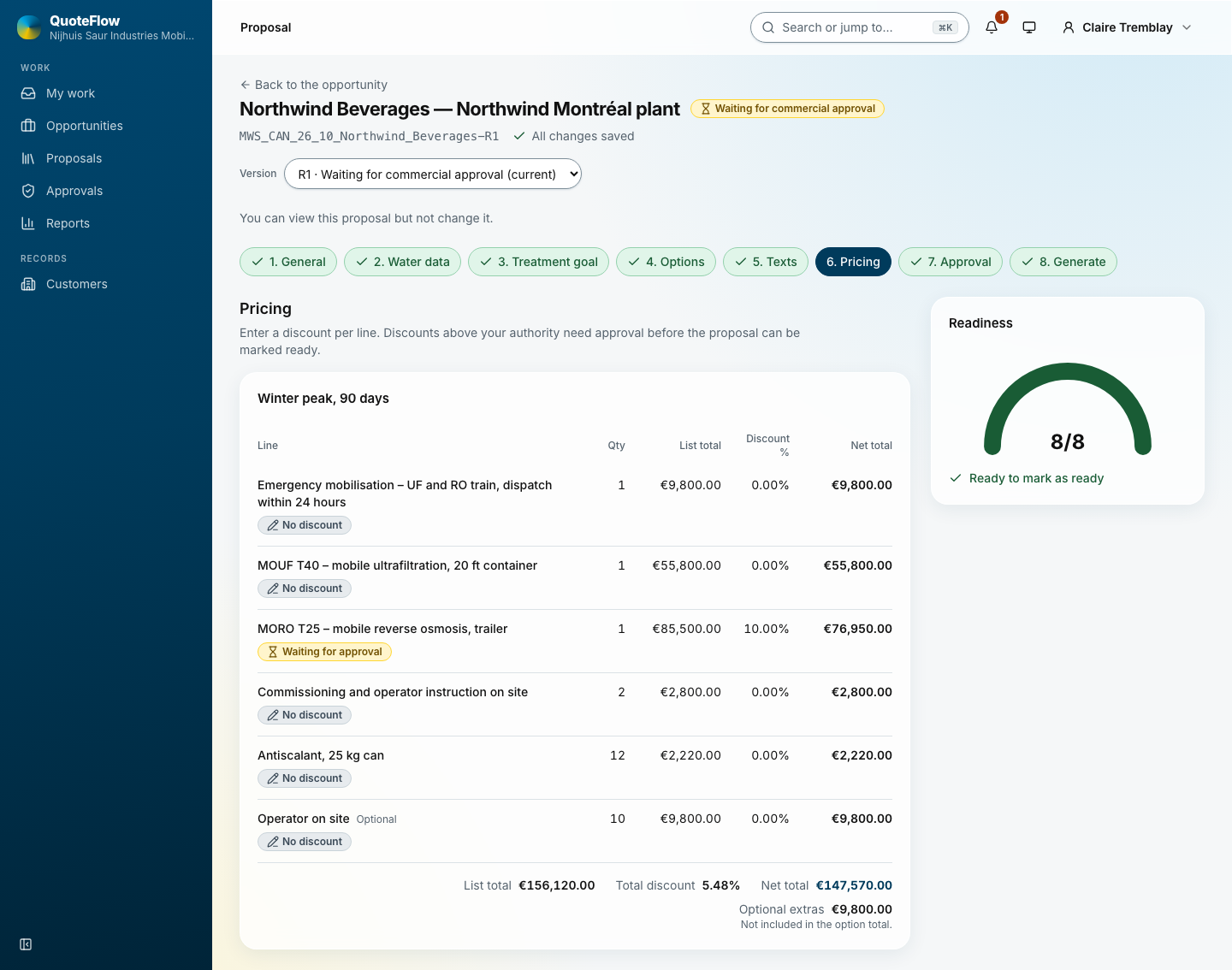
Every line with its list price, the discount you ask for, and what the pricing rules allow your role. A discount above your authority marks the line "needs approval" and blocks the proposal until it is decided.
7. Approval
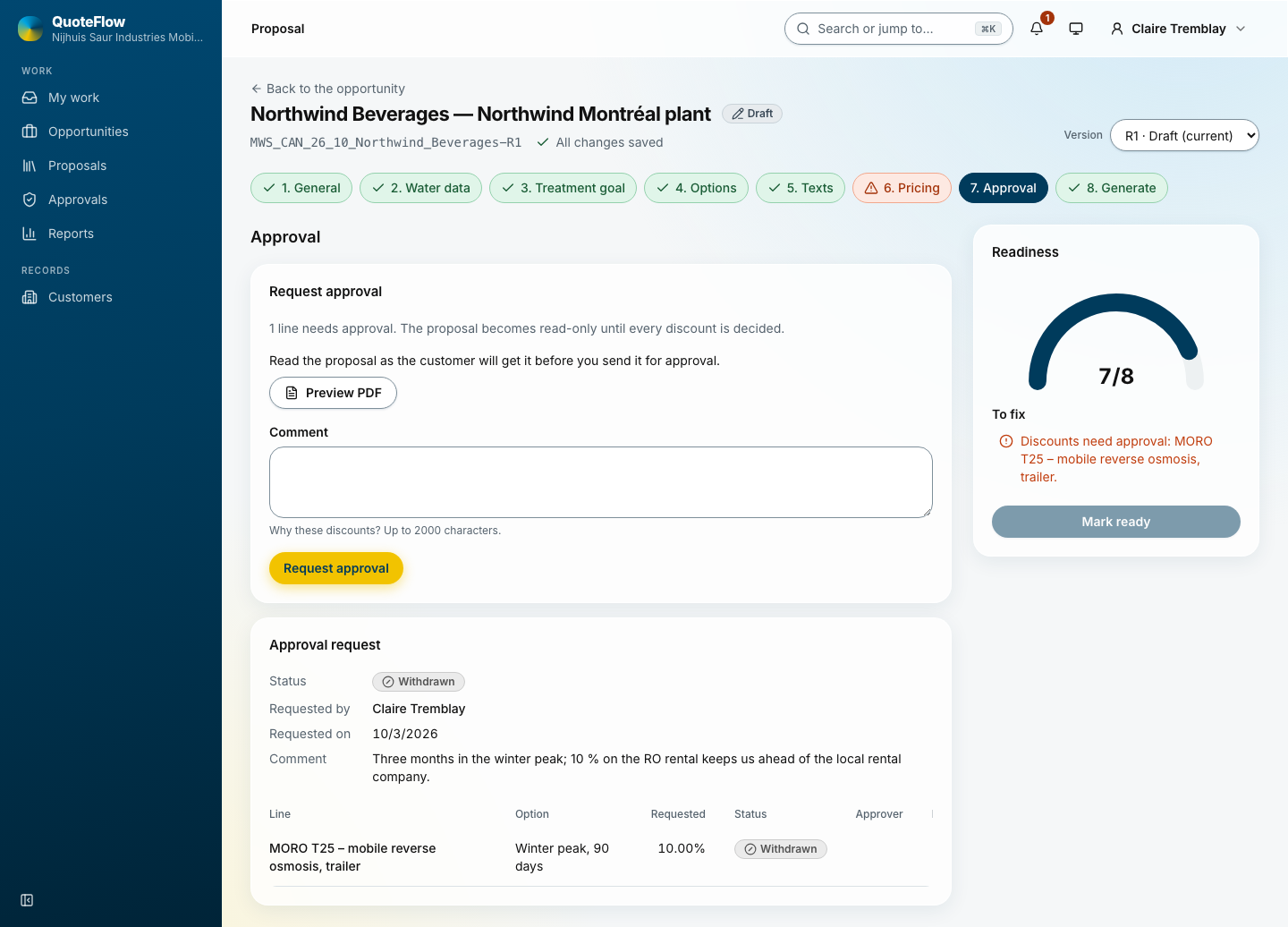
Preview PDF shows the proposal as the customer will get it, before anything is sent. Request approval sends the lines that need a decision to the commercial admins with your comment; the proposal is read-only until every line is decided.
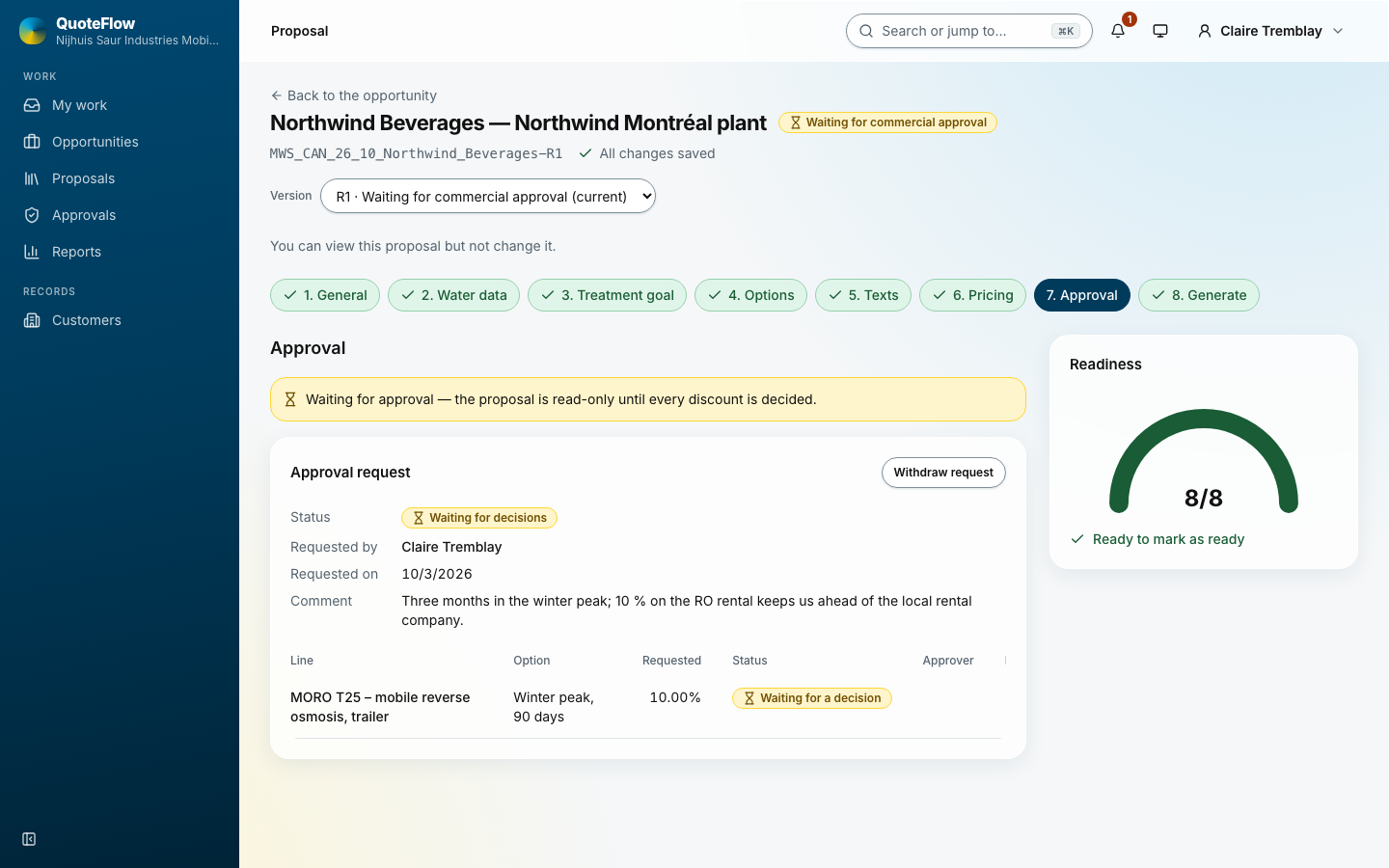
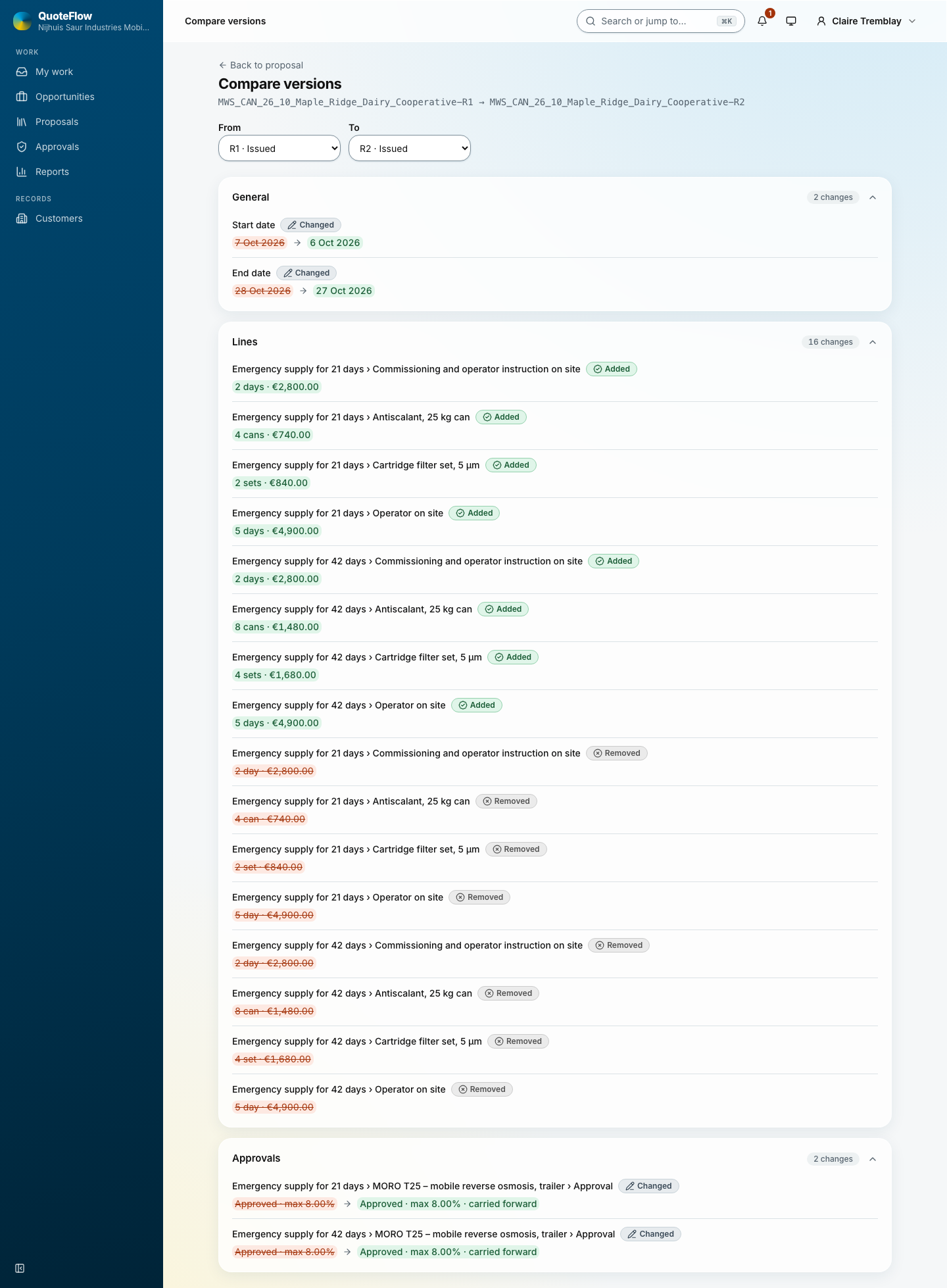
Withdraw request takes it back. The decision (approved, approved at a lower discount, rejected) shows here and as a notice.
8. Generate
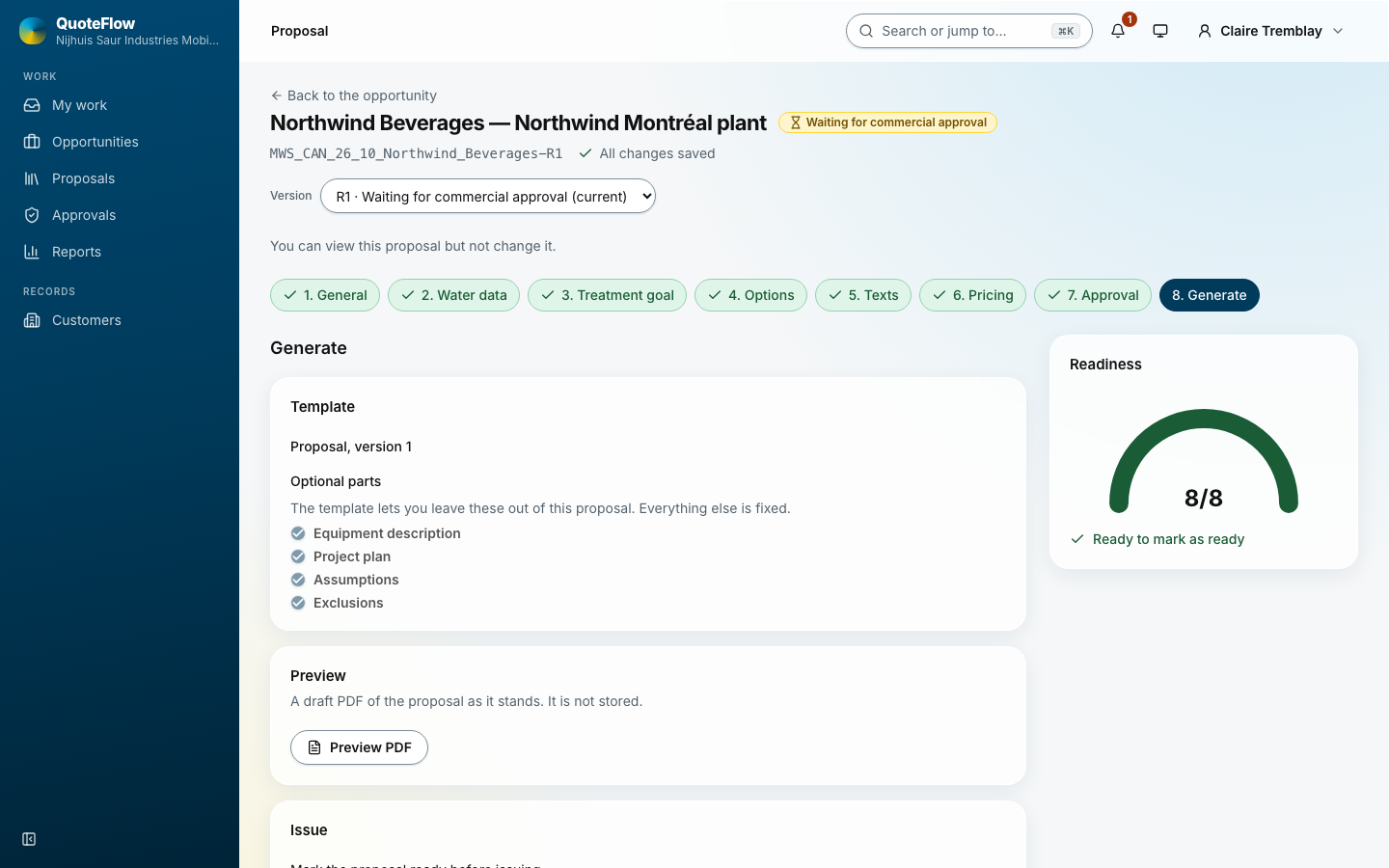
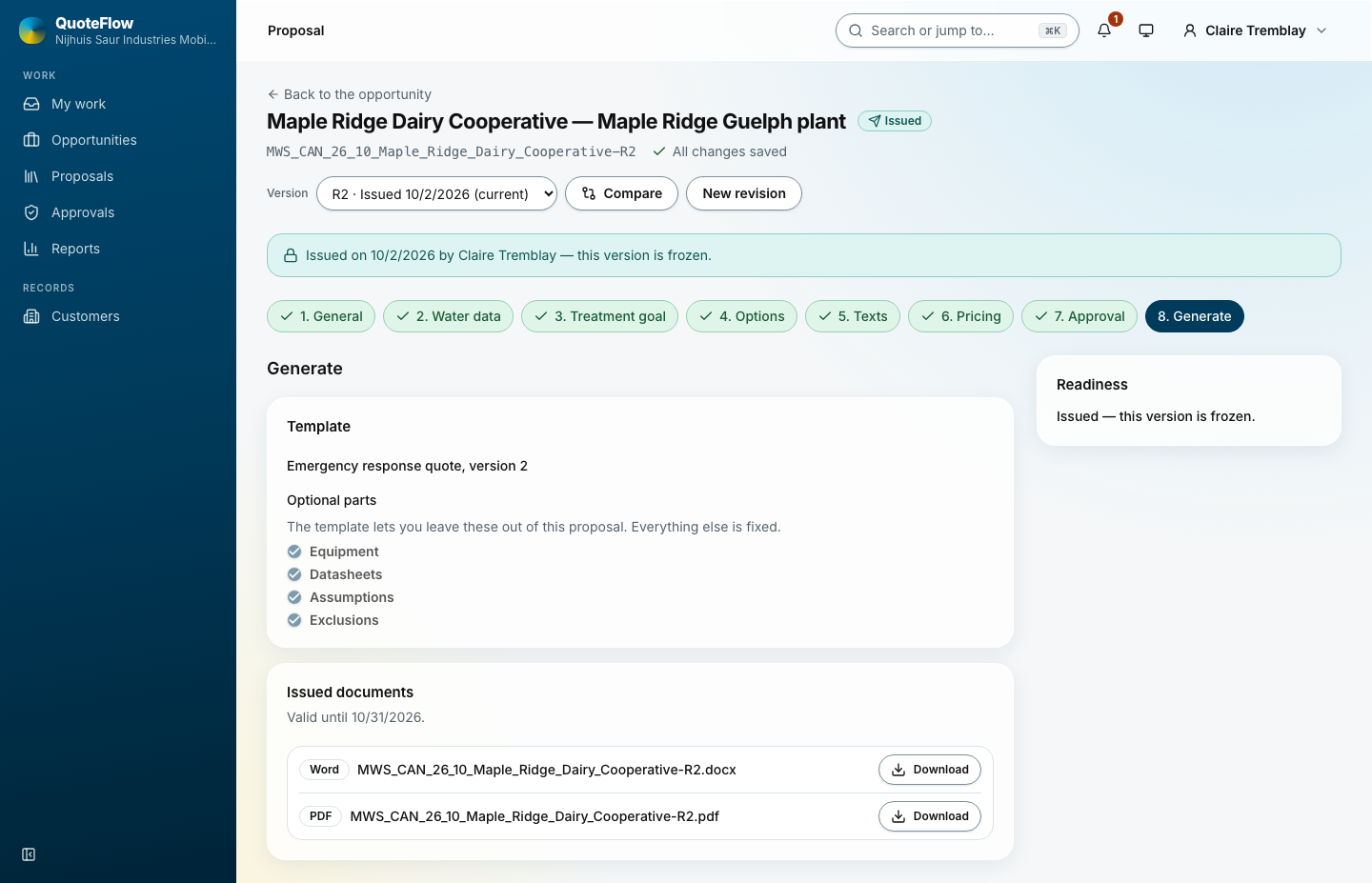
Pick the template (the company’s proposal, or a shorter one), switch off the optional blocks the template allows, Preview PDF again, then Mark ready and Issue proposal. Issuing renders the Word and PDF files, appends the datasheets of the rented equipment, stores both in the opportunity’s 02 Proposals folder and freezes the version.